Calibrate pH Sensor
Use the AROYA web app for the calibration of solution 7 and 4. Multiple pH Sensor pens can be used for the same solution during that session.
Important: Clean the pen in water before putting it in the solution. Never let the probe dry out.
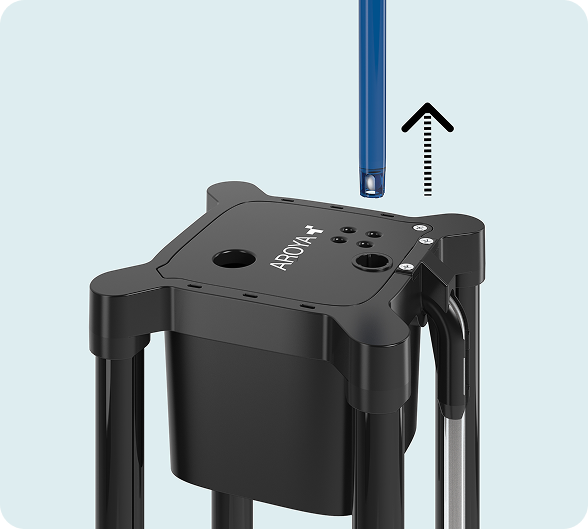
Remove the pH Sensor
Open device in app
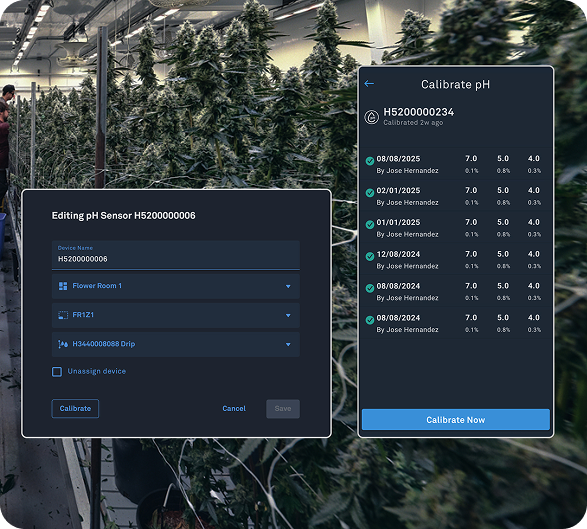
On the device details page you can access the Calibrations section by selecting the pH Sensor on 'Devices'. The detail page has 'Calibrate', linking to the 'Calibrate pH' screen.
Clean in Water
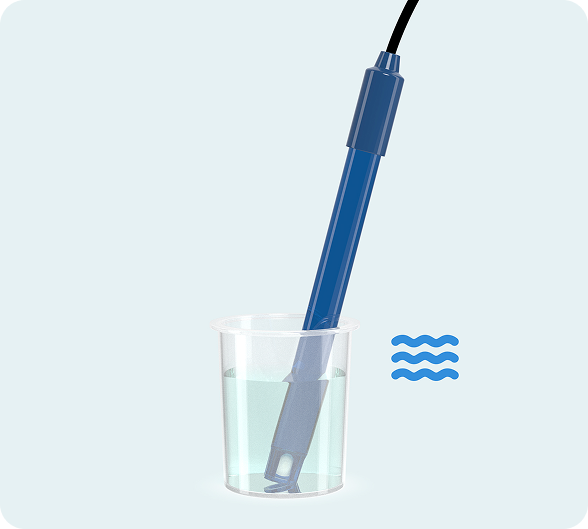
Place in clean distilled water first. Making sure the sensor is clean before putting it in the solutions 7 and 4.
Calibrate Solution 7
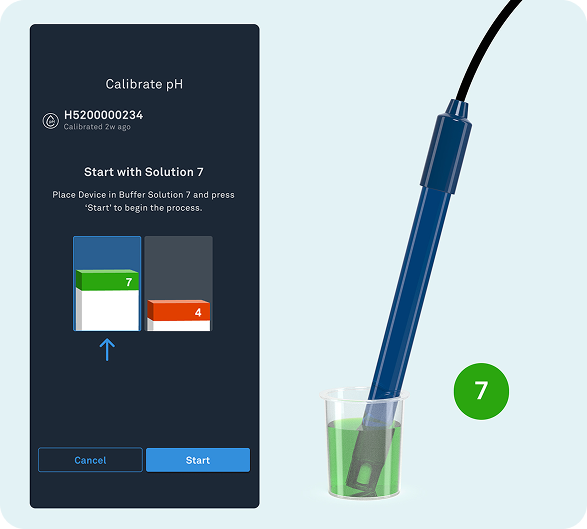
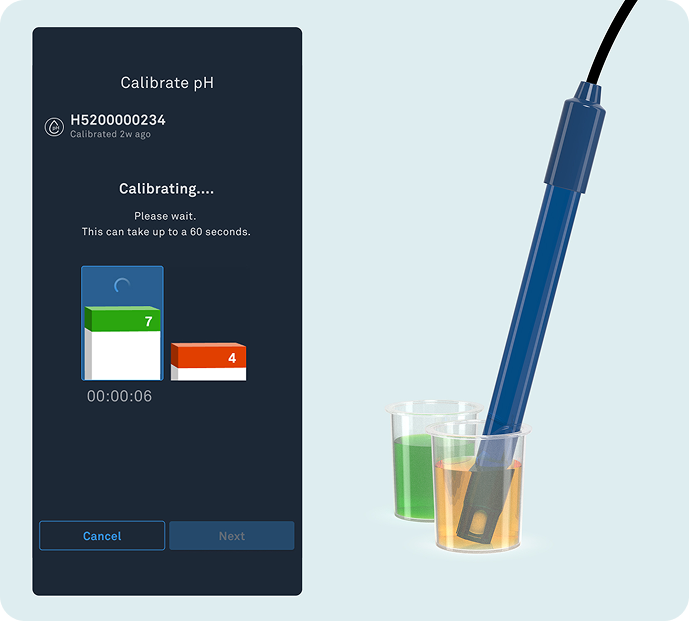
When prompted in the app place the probe into the pH 7 solution and tap Start. The process will take approximately 3 minutes; wait for the green check mark to confirm completion. Rinse the probe thoroughly in distilled water before moving to the next step.
Calibrate Solution 4
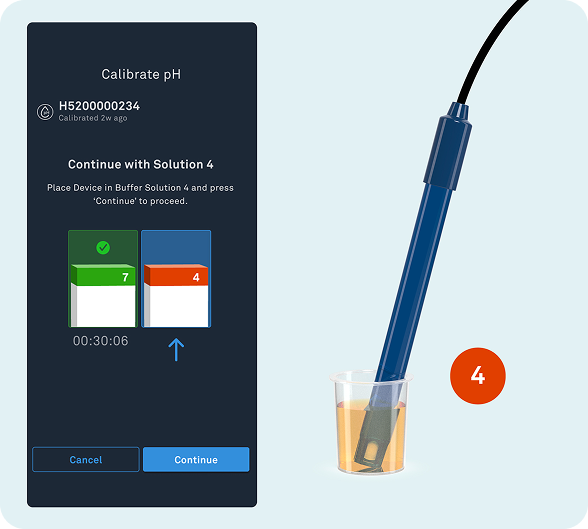
Next, submerge the probe in the pH 4 solution and press Start. After about 3 minutes, the second calibration point will finish. Ensure both points now show a green check mark before finishing.
Finish to complete
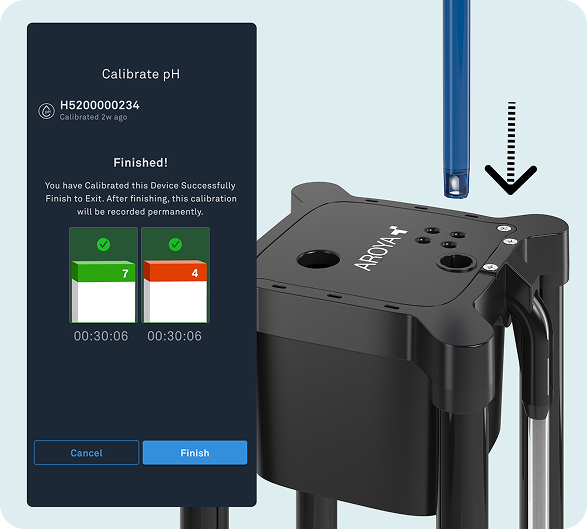
Tap 'Finish' to save the data, once both solutions show a green checkmark. It will be recorded in the app. Finally, reinstall the sensor in its designated location in the drip or drain cup.
Reinstall the sensor
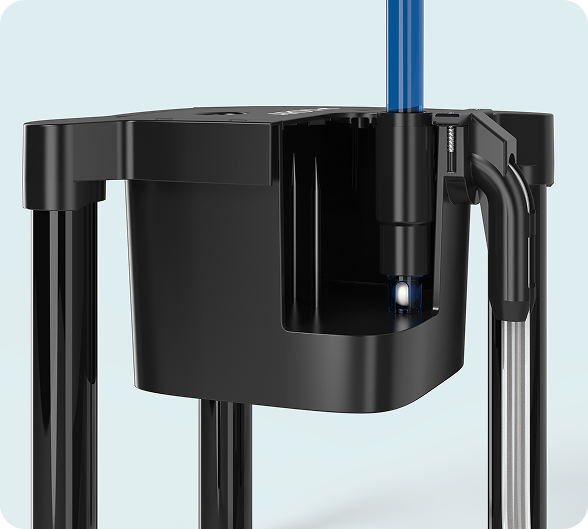
Push it all the way to the bottom to make sure the sensor tip is partially submerged at all times.